
Share your study with any other Stony Brook TNX user by adding them to your Study Team. Each study has its own Team. Anyone on your Team can see all of that study's queries and add their own, and each query is tagged with its creator's name for clarity.
Share a study with your team
- Click Study Management > Team > Share Study.
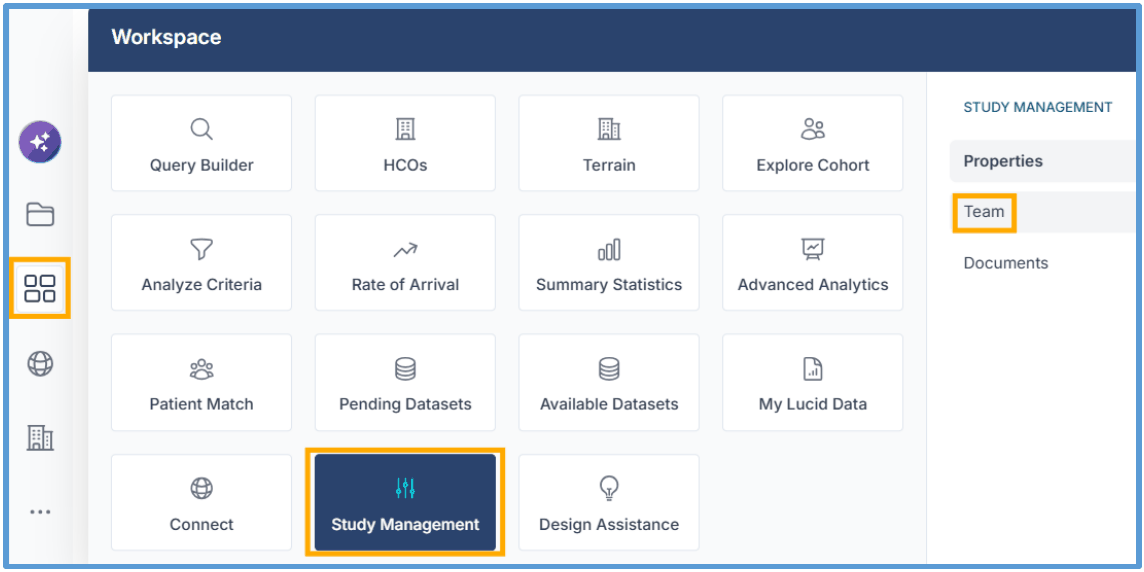
- Choose Team members from the available users, then click Share Study. If you don't see your collaborator, they do not have a TNX account yet and may need to request one.
- Each Team member you choose gets an email with a link, letting them know the study has been shared with them.
Tip: Name important queries, and encourage collaborators to do the same.
Share a query with a non-user
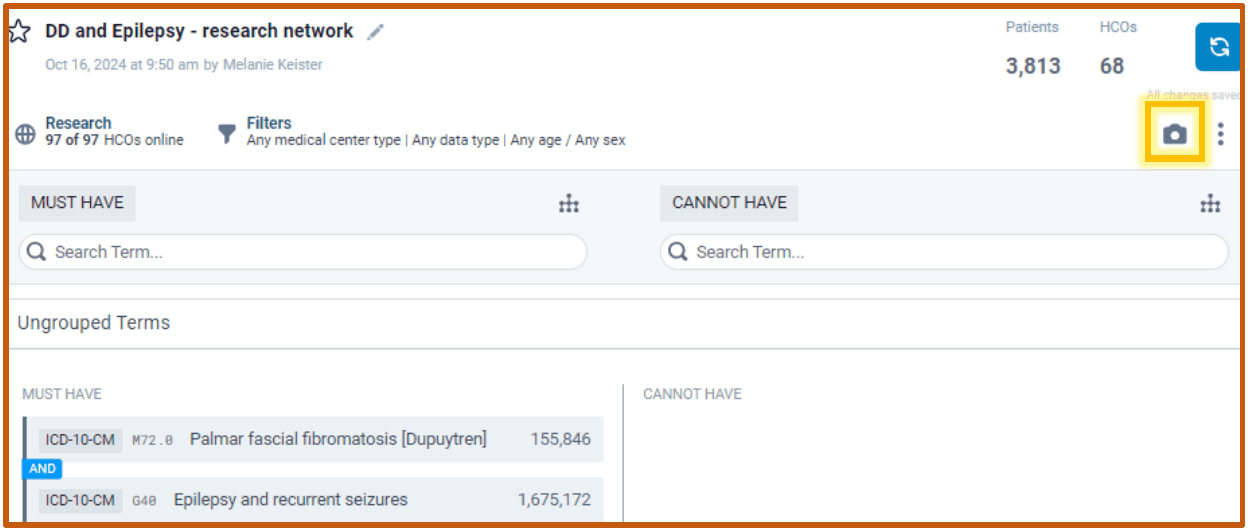
You can also share an image of one of your study's queries with someone who does not have a TNX account.
- In the Query Builder view, click the camera icon to download a snapshot of the query details.
- Share the image file with whomever you wish!