A worked example you can follow along with in TriNetX to get comfortable building a query. For the basics behind each step, see Building Queries.
The cohort
Build the query
- Set the network. Choose Stony Brook University.
 Note about the age and sex filters: We will not use the age filter at the top of the Query Builder. It filters for patients aged 50 or older on the date you run your query, not when the patient was admitted with cellulitis. That filter is great for recruitment, but not for retrospective research.
 - Add the relevant terms with the Must Have search field:
- Type 2 diabetes mellitus (E11)
- Cellulitis and acute lymphangitis (L03)
- Visit: Inpatient Encounter
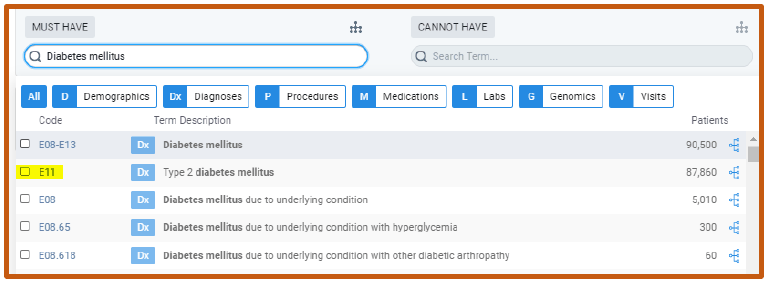
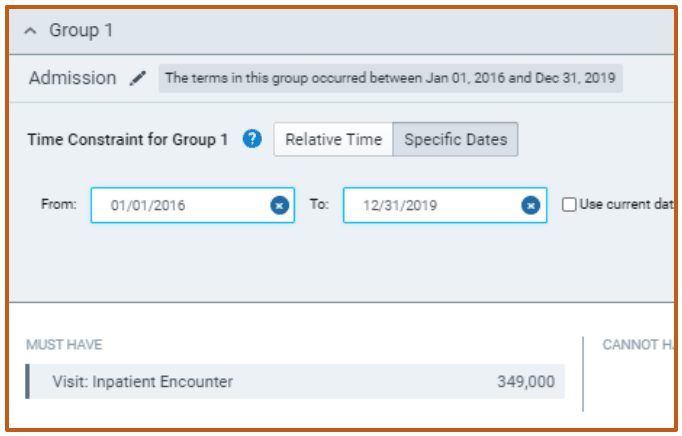
- Create a time constraint. Create a new group (Group 1) and click to add terms. Add Inpatient Admission and name the group Admission. Then click Group Rules, choose to add a Time Constraint, and enter specific dates: 1/1/2016 to 12/31/2019.
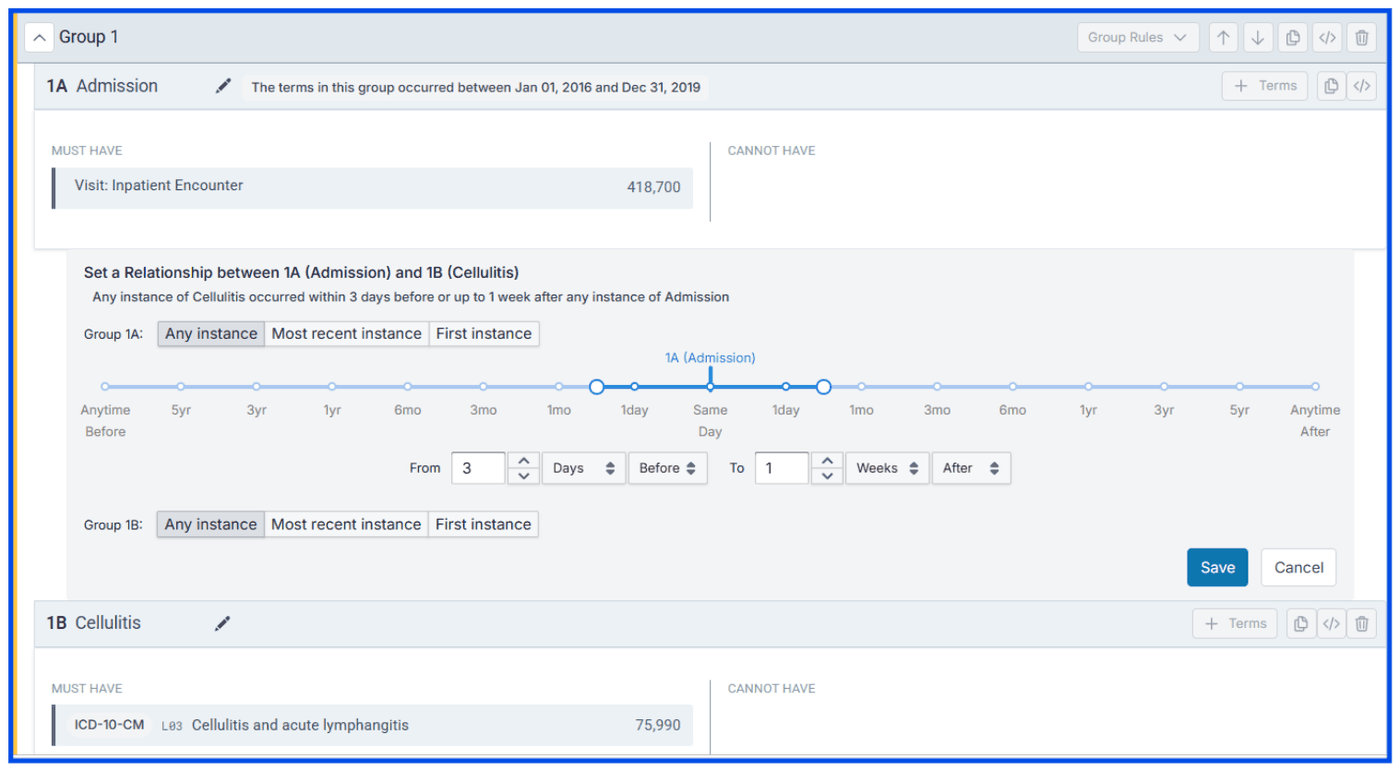
- Relate the cellulitis diagnosis to the hospital admission. Click Group Rules again in Group 1, then click Add Related Group. In the new box, click +Terms to add Cellulitis. Group 1 now has 1A and 1B boxes; name the 1B box Cellulitis.
Set the relationship between Cellulitis and Admission so that any instance of 1B happened from 3 days before to 1 week after any instance of 1A. This time relationship tries to leave out patients admitted to the hospital for a reason other than cellulitis.
- Show a history of type 2 diabetes. Search for and add the term "Cellulitis and acute lymphangitis" to the query again, since this time we want to show that the patients diagnosed with cellulitis had a history of diabetes.
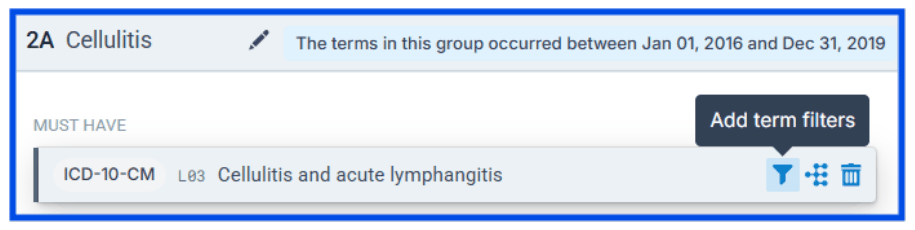
Create another group (Group 2) with the term "Cellulitis and acute lymphangitis". Click Group Rules and add the same time constraint, 1/1/2016 to 12/31/2019. Name the 2A box Cellulitis.
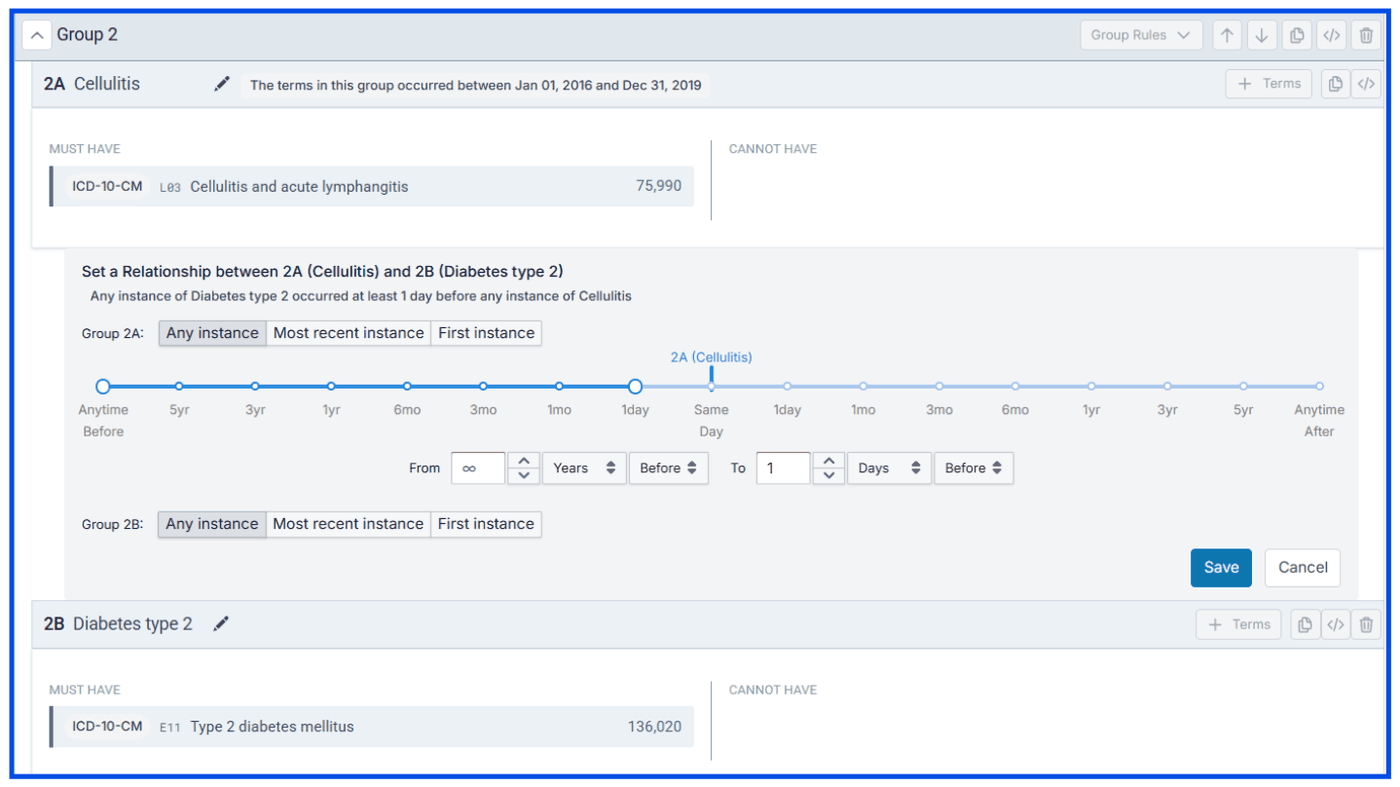
Relate the type 2 diabetes diagnosis to cellulitis: click Group Rules and add a Related Group in Group 2. In the new box, add the term "Type 2 diabetes mellitus". Group 2 now has 2A and 2B boxes; name the 2B box Diabetes Type 2.
Set the relationship between "Cellulitis and acute lymphangitis" and "Type 2 diabetes mellitus" so that any instance of 2B happened at least 1 day before any instance of 2A. This makes sure patients already had a type 2 diabetes diagnosis before any cellulitis in their record.
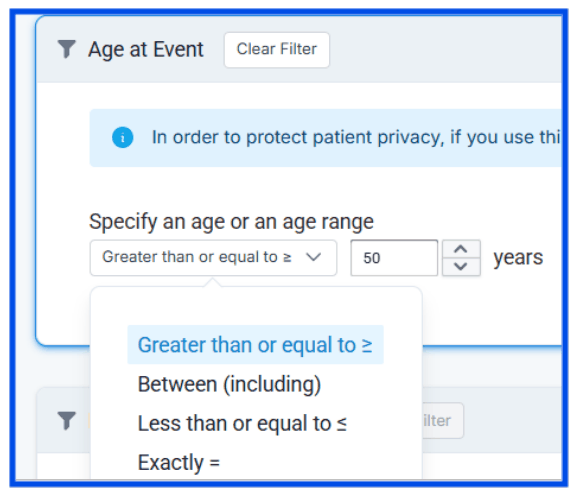
- Set an age on the cellulitis diagnosis. Hover over the Cellulitis term in Groups 1 and 2 to see the funnel. Click the funnel and set Age at Event to greater than or equal to 50 years.
- Click Count Patients and name your query!