
A quick tour of the main areas of TriNetX: your studies, Browse Network, Connect and Custom Terms, and the tools inside each study.
Studies tab: first stop
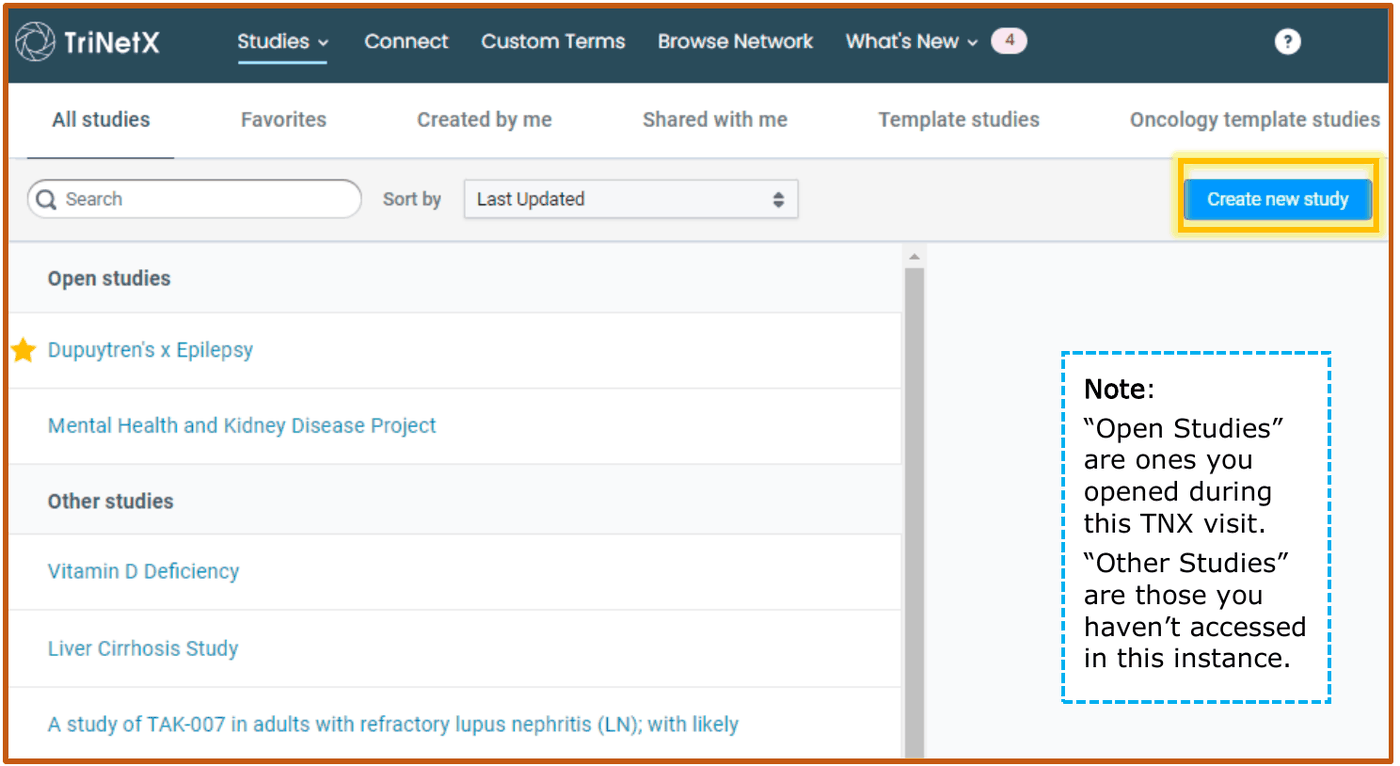
TriNetX (TNX) keeps a running library of all the studies you have created, or that have been shared with you. Create a fresh study by clicking Create New Study.
To find existing studies, you can search by study name, by your favorites  , your own studies, those shared with you, or templates.
Working inside a study is covered in Navigating inside your study below.
Connect
Connect is only available to certain users at Stony Brook.
Pharma and device sponsors pay TNX to load their studies into the system, and the Office of Clinical Trials gets a message when a proposed clinical trial matches our patient population. Our SBU contact then reaches out to potential SBU investigators to see if they are interested in taking part.
Custom Terms
A Custom Term is a set of codes carefully combined by a user into one time-saving term. Examples might be a long list of contraindicated medications, or a set of criteria for a diagnosis you use often in your research.
Users must request access to the Custom Terms feature.
Browse Network: a scenic vista
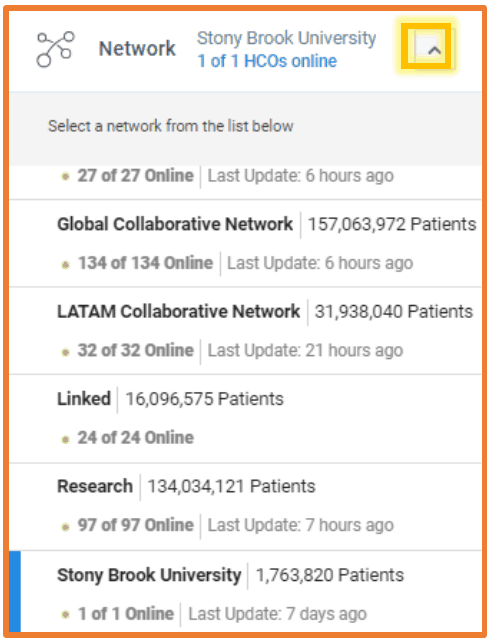
The Browse Network tab gives you a mountain-top view of the patient facts available in a network as a whole. Click the network section to see your options to browse.
- Connect lets pharma ask our Office of Clinical Trials to match their studies with one of our PIs.
- Analytics is a set of powerful analysis tools you can use within the platform to look at your data.
- Data sets means a dataset can be requested from the network for your own analysis.
Browsing network data
Within each network, choose from these views in the left-side menu:
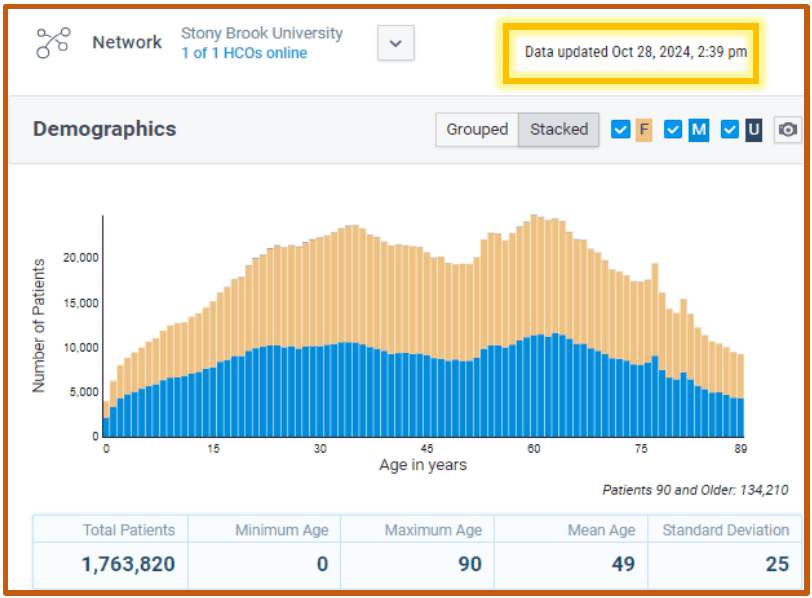
- Demographics: number of patients; percentages for sex, race and ethnicity; age ranges
- Diagnoses: number of patients by diagnosis code; percentages of the network
- Oncology: cancer-specific data, such as histology or staging
- Procedures: number of patients by procedure code; percentages of the network
- Medications: number of patients by medication; percentages of the network
- Labs: number of patients with values for each lab; percentages of the network; how lab values are spread across the network
- Genomics: number of patients with specified genomics; percentages of the network
Navigating inside your study
Opening your study takes you to the Query Builder by default. The Workspace menu on the left opens the other tools.
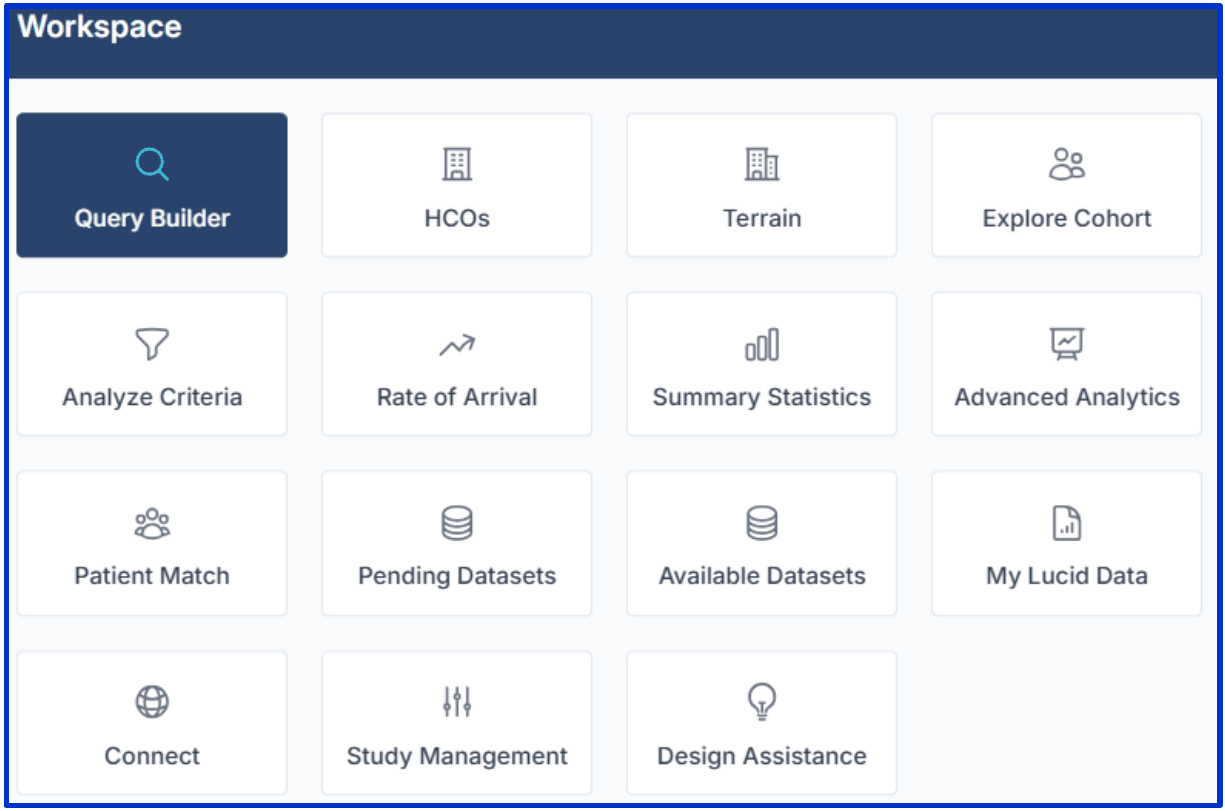
Query Builder: Build a new query here, and come back to the ones you have already built. All your queries collect on the right side, and are Unnamed until you name them. Click the pencil to change the name, and the trash can to delete.
HCOs: Click Run when your query is on the Stony Brook University network to see the locations where the patients in your cohort received care. One patient may have been seen at several locations. For example, Patient Bob may have visited the cardiology clinic and the dermatology clinic, so both locations' counts include Patient Bob.
Terrain: For industry TriNetX clients looking for potential study recruitment sites.
Explore Cohort: Click Run to browse your cohort's characteristics: demographics, diagnoses, procedures, medications, labs and any available genomics.
Analyze Criteria: Fine-tune your query by seeing which criteria change your number of patients. Ideal for study feasibility and planning.
Rate of Arrival: A quick prediction of how many new patients will fit your criteria in the coming year, based on historical trends.
Summary Statistics: See how many patient facts are available in your cohort's dataset, the time window for those facts, and a rough idea of where those patients are located.
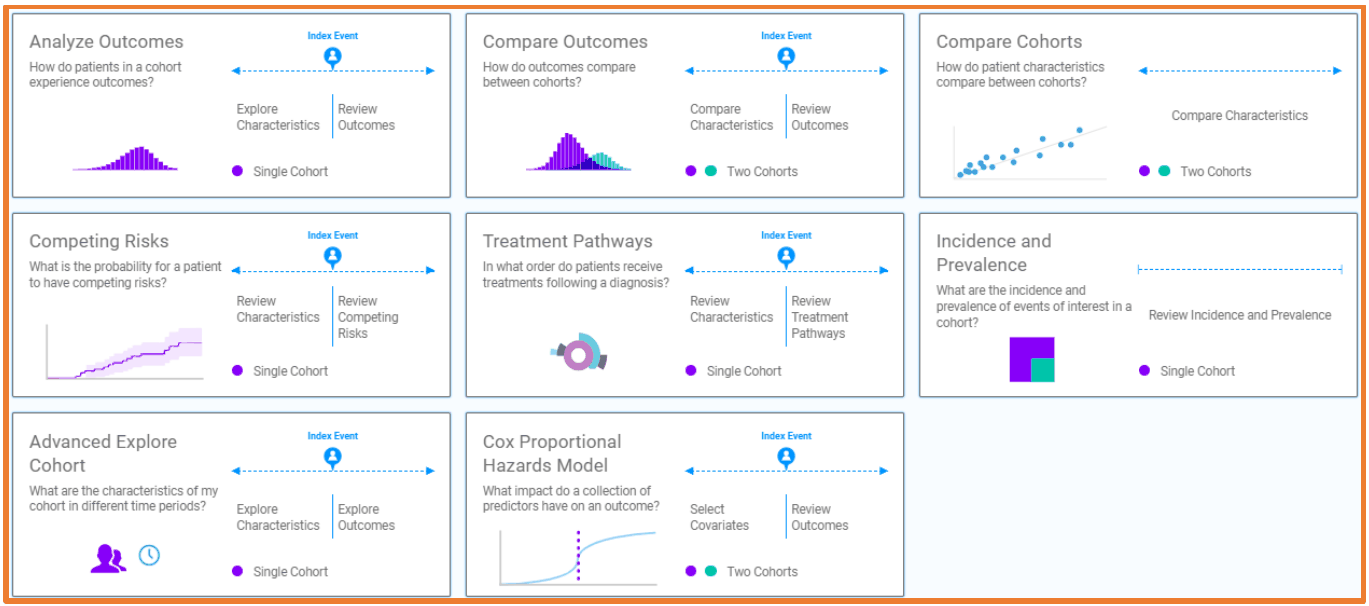
Advanced Analytics: Take a deep dive into your data by comparing cohorts and treatment pathways, analyzing outcomes, and more. TNX adds new features from time to time.
Patient Match: Available on the Stony Brook University network, as a step toward requesting re-identification of your cohort for chart review or recruitment. It shows whether synthetic IDs were downloaded for your query, and which query they came from.
Pending and Available Datasets: Where your SB TNX support person finds your dataset requests and processes your dataset downloads.
My Lucid Data: If you have an available dataset and access to Lucid, you can launch the statistical software from here.
Connect: Only available to the assigned Stony Brook Trial Connect contact. It links pharma sponsors with Stony Brook principal investigators for new studies.
Study Management: Update your study properties, share your study by adding people to your team, and upload relevant documents. See Share a Study.
Design Assistance: Built your query, tried everything, and it still doesn't seem quite right? Or just want someone to check your work? Click to message a TNX expert about your query.