
RStudio Server gives you the full RStudio interface in your browser, running on a cluster compute node. Write and run R scripts, make plots, and use the built-in terminal, with more memory and cores than a laptop and nothing to install.
On this page: Where it runs · Start a session · Launch settings · Installing packages · Files and sharing · Troubleshooting
Where it runs
| Cluster | R versions | Runs on |
|---|---|---|
| SeaWulf | R 4.5.1 or 4.3.2, chosen on the form | Shared CPU queues (40-core or 96-core nodes) |
| NVwulf | Set by the app | B40 GPU nodes |
| ClinWulf | Set by the app | CPU or GPU queues, for work with PHI |
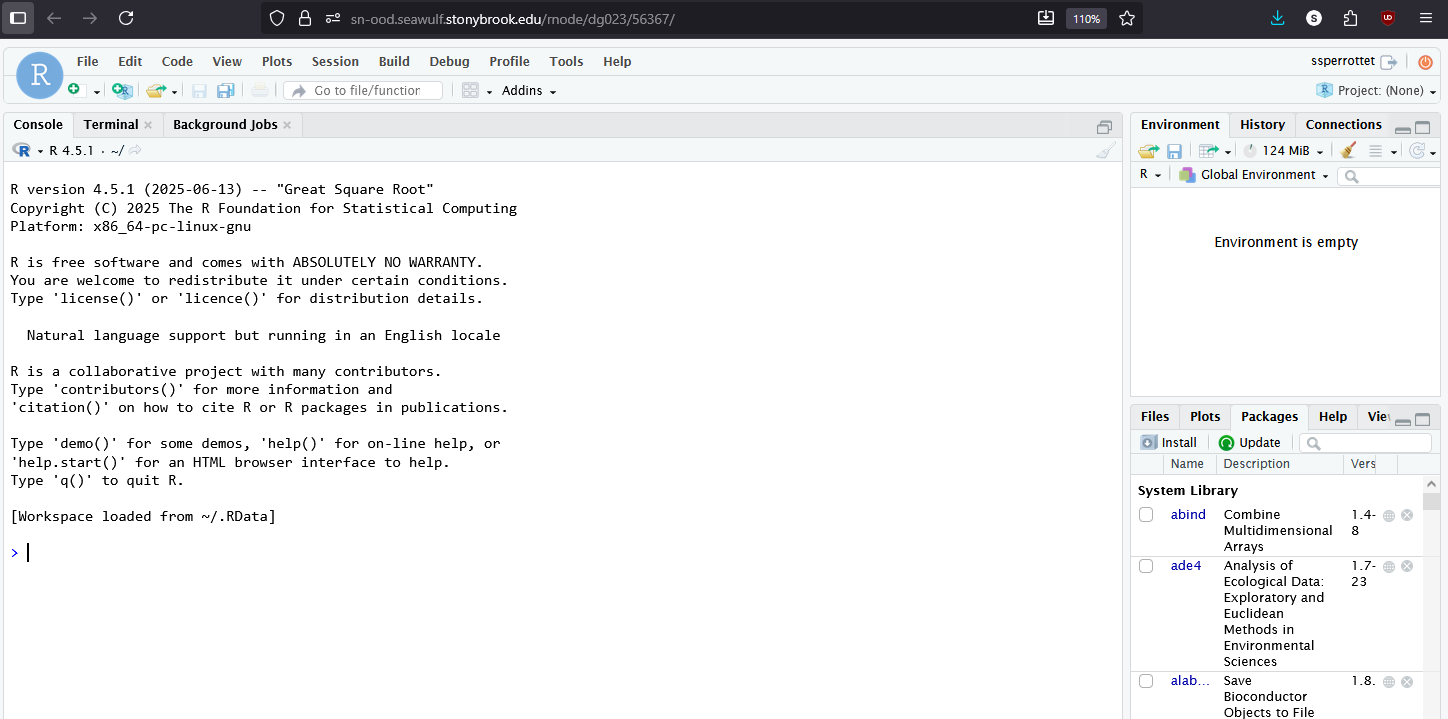
To check the version inside a session, type R.version.string in the console.
Start a session
- Sign in to your cluster's OnDemand portal with your NetID and Duo.
- Open Interactive Apps and choose RStudio Server.
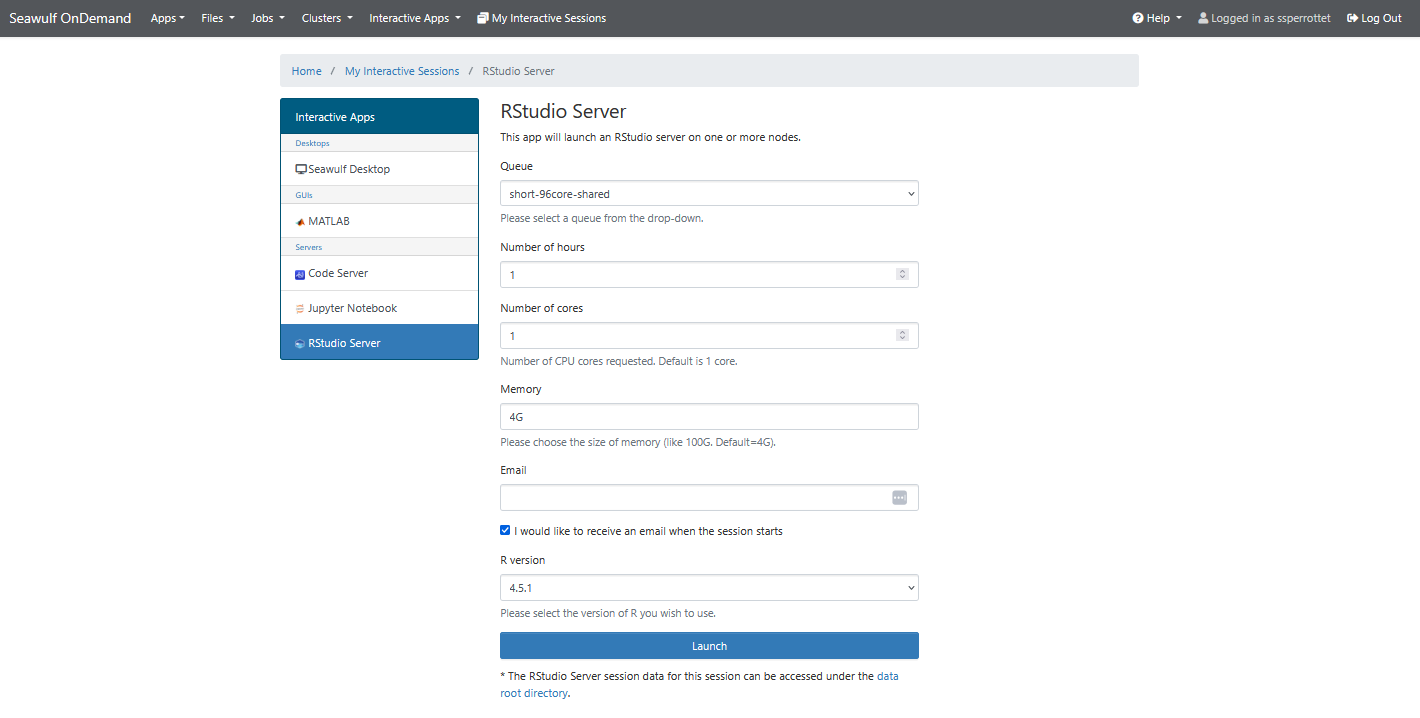
- Fill in the form (see below) and click Launch.
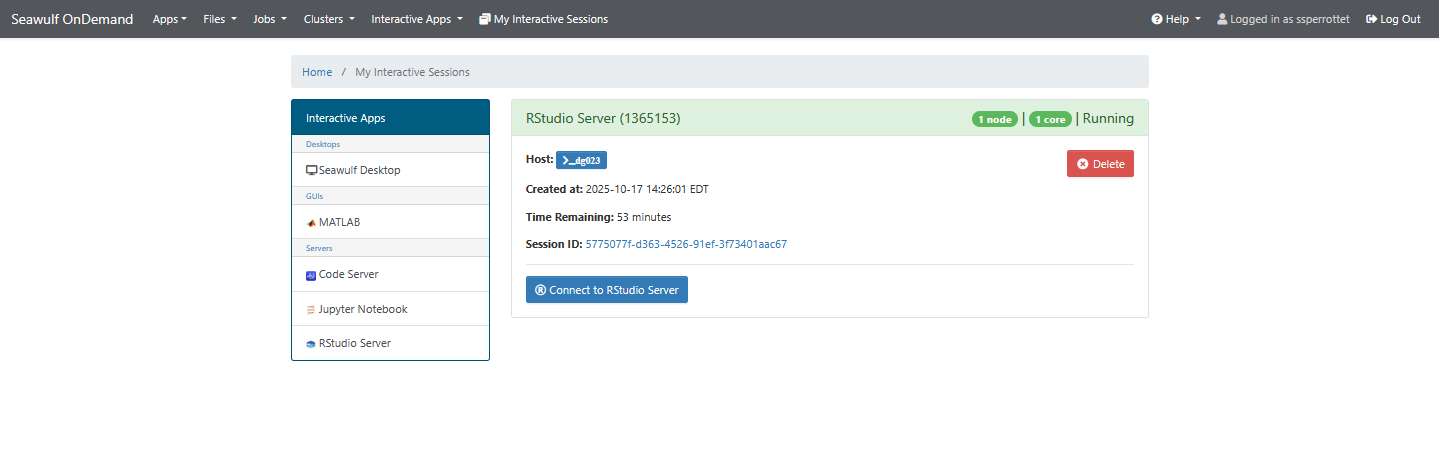
- When the card shows Running, click the connect button.
- When you're done, save your scripts, close the tab, and click Delete on the session card.
Launch settings
| Setting | SeaWulf | NVwulf | ClinWulf |
|---|---|---|---|
| Queue | short-40core-shared (up to 4 hours) for most work; long and extended shared queues for more | b40x4 (up to 8 hours) or b40x4-long (up to 48 hours) | A CPU queue unless you need a GPU |
| Cores | 1 to 4; more only if you use parallel packages | 1 to 4 | 1 to 4 |
| Memory | 2 to 164 GB; about twice the size of your data is a good start | 8 to 480 GB | Type it, for example 16G |
| Extras | R version, and Additional modules for packages that need system libraries | GPUs (usually 1) | GPUs, typed as type and count (for example a100:1), only on GPU queues |
Installing packages
Install packages the usual way. The first time, R asks to create a personal library in your home folder; answer yes.
install.packages("tidyverse")
- Packages belong to one R version. If you switch versions on the form, reinstall the packages you need.
- If an install fails with a missing library such as
hdf5,libpng, orcmake, delete the session and relaunch with that module in Additional modules (SeaWulf), for examplehdf5/1.12.1. Find module names withmodule availin a terminal. - Bioconductor packages install with
BiocManager::install()afterinstall.packages("BiocManager"). - For a reproducible project,
renvkeeps a separate library per project.
Files and sharing
RStudio opens in your home folder. To reach scratch or project space from the Files pane, add a shortcut once from the RStudio Terminal tab, for example on SeaWulf:
ln -s /gpfs/scratch/$USER ~/scratch
ln -s /gpfs/projects/<group> ~/project
RStudio sessions are private; there's no link to share a running session. Work together through Git (RStudio's Git pane works as usual) or a shared project folder.
Troubleshooting
R crashes or says "cannot allocate vector"
You ran out of memory. Save your work, delete the session, and relaunch with more memory.
RStudio opens with an old, broken workspace
RStudio restores your last session. Turn this off under Tools, Global Options, General: untick restoring .RData and set saving the workspace to Never. If it still won't open, rename ~/.local/share/rstudio from a terminal and relaunch.
A package won't install
Read the error for a missing system library, then relaunch with that module added (see above). If you're stuck, open a ticket with the package name and the error.
My session stays Queued
Try a shorter queue, fewer cores, or less memory.
Related: OnDemand overview · Using modules · SeaWulf apps · NVwulf apps · ClinWulf apps