
Run MATLAB's full desktop in your browser on a cluster compute node, with many more cores and much more memory than a laptop, and GPUs on NVwulf. You can also share a view-only link so a colleague can watch your session.
On this page: Where it runs · Start a session · Launch settings · During your session · Using more cores and GPUs · Troubleshooting
Where it runs
| Cluster | MATLAB versions | Runs on |
|---|---|---|
| SeaWulf | R2025a, R2024a, R2023a, R2022a, R2021a and R2021b, and older releases back to R2016 | Shared CPU queues (40-core or 96-core nodes) |
| NVwulf | R2025a | B40 GPU nodes |
ClinWulf's portal doesn't have a MATLAB app. For free, MATLAB-compatible computing on SeaWulf, there's also GNU Octave (see SeaWulf apps).
Start a session
- Sign in to your cluster's OnDemand portal with your NetID and Duo.
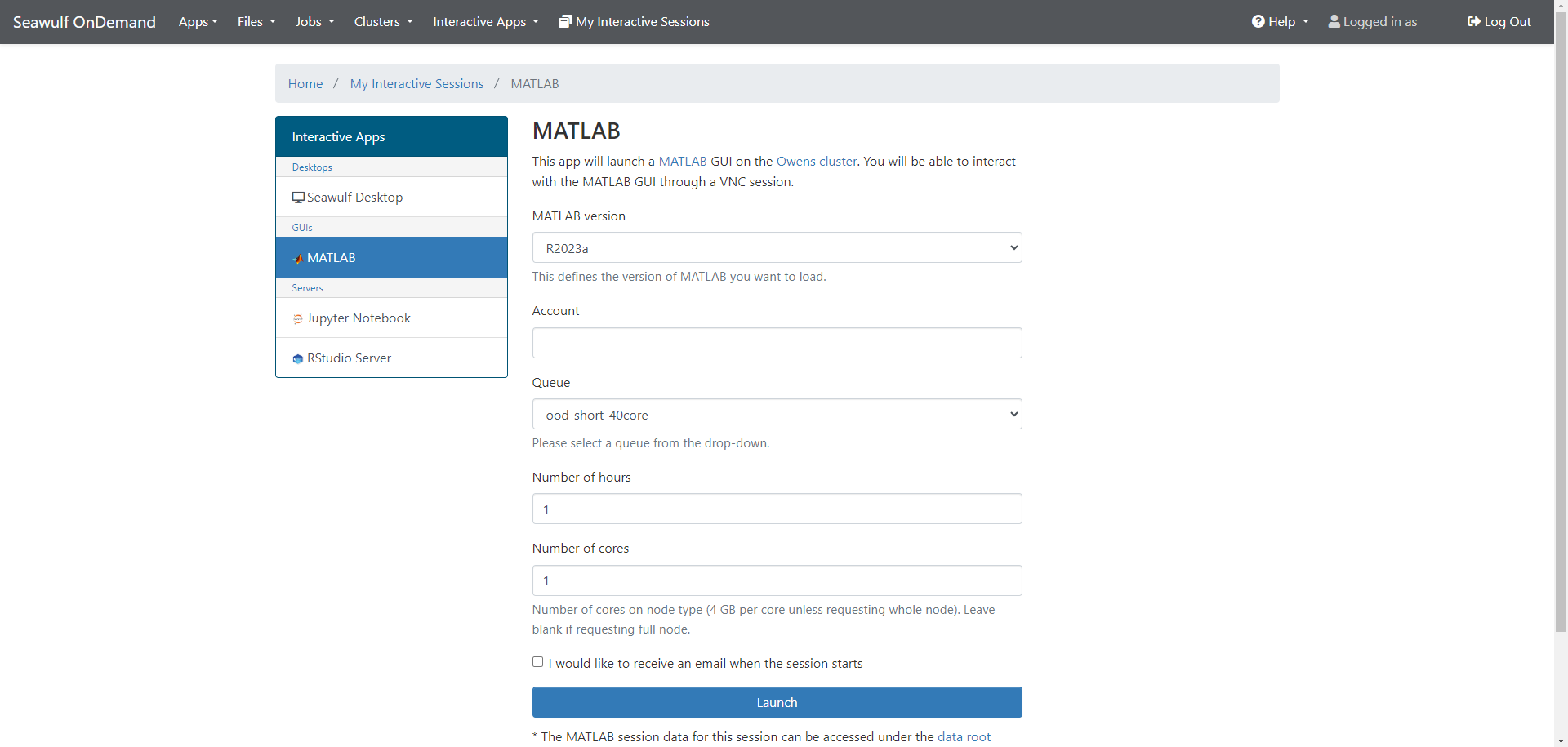
- Open Interactive Apps and choose MATLAB (under GUIs).
- Fill in the form (see below) and click Launch.
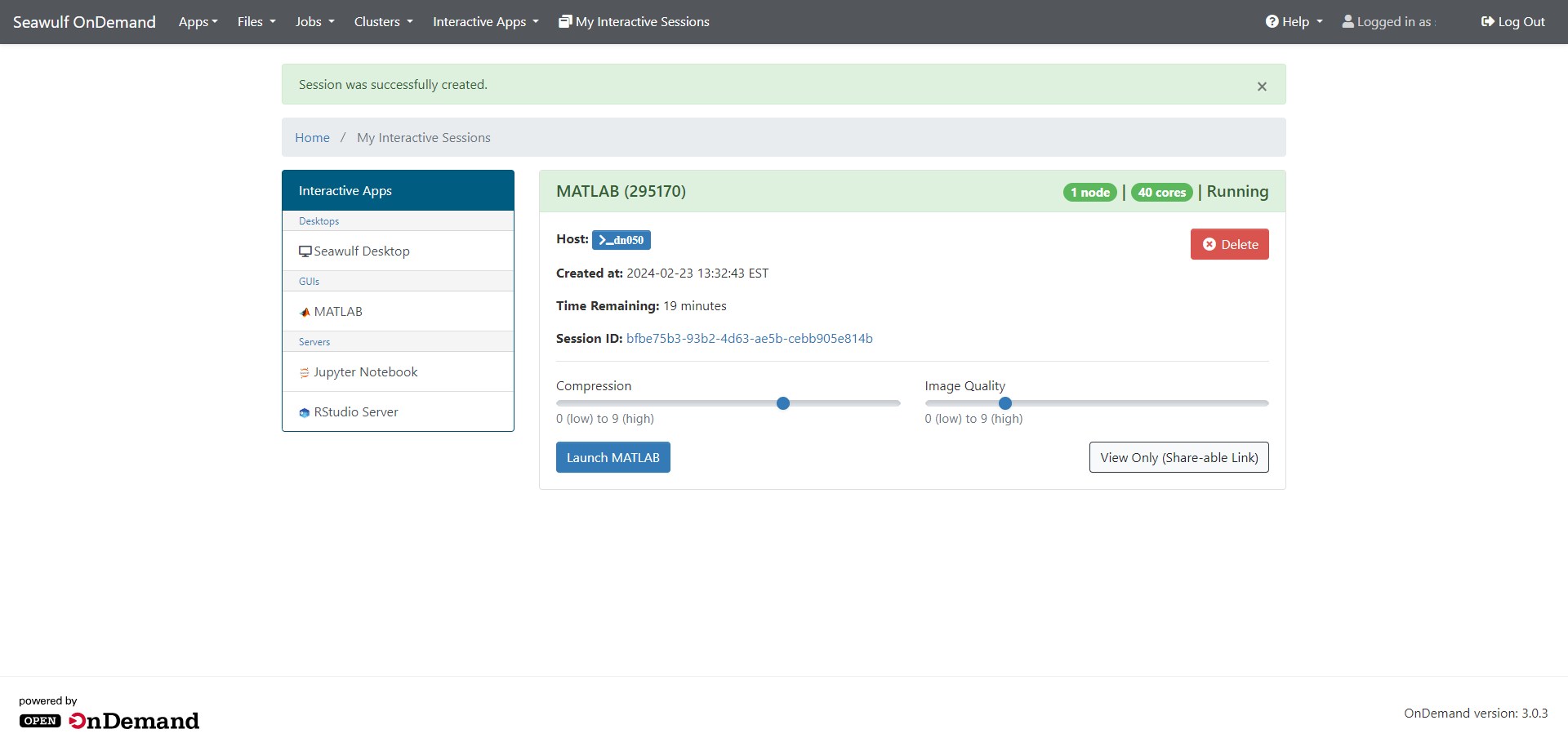
- When the card shows Running, click the launch button on the card. MATLAB opens in a new browser tab.
- When you're done, save your work, exit MATLAB, and click Delete on the session card.
Launch settings
| Setting | What to choose |
|---|---|
| MATLAB version | The newest is a good default. Pick an older one only to match existing code. |
| Queue | SeaWulf: short-40core-shared (up to 4 hours) for most work; long and extended shared queues for more. NVwulf: b40x4 (up to 8 hours) or b40x4-long (up to 48 hours). |
| Cores | 1 to 4 for interactive work. Ask for more if you'll run a parallel pool (see below). |
| Memory | SeaWulf 2 to 164 GB, NVwulf 8 to 480 GB. 8 GB is a comfortable start. |
| GPUs | NVwulf only. 1 is enough unless your code uses several. |
| Modules | Optional extra modules to load first, for example a compiler for MEX files (gcc/13.2.0 on SeaWulf). |
During your session
The running session card has a few useful controls before you connect:
- Compression and Image quality sliders. On a slow connection, raise compression and lower quality to make MATLAB more responsive.
- View Only (Share-able Link). Send this link to another cluster user so they can watch your MATLAB session, for example while you get help. They can see but not type or click.
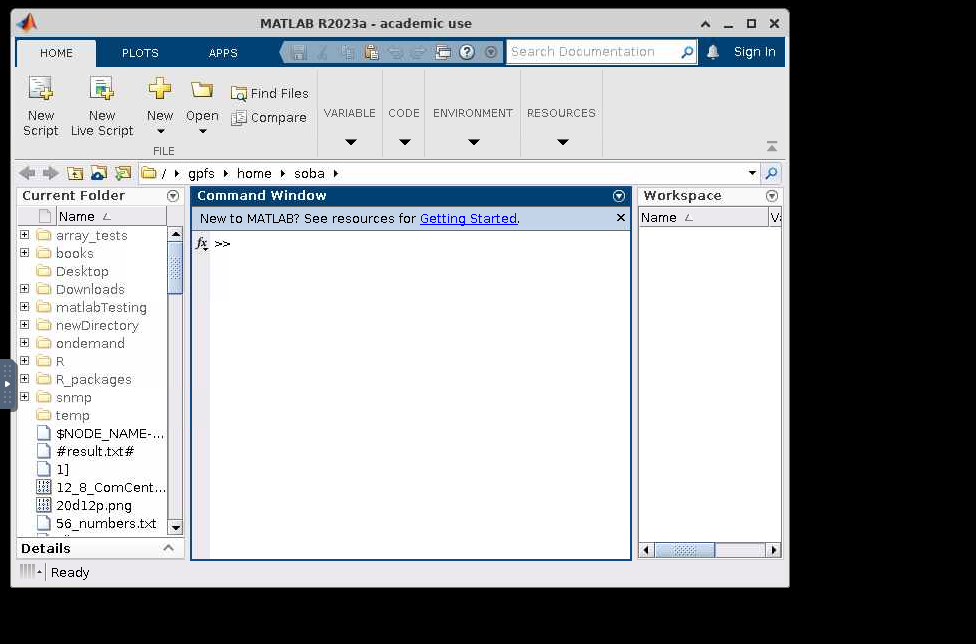
MATLAB starts in your home folder. Browse to scratch or project space from MATLAB's Current Folder bar, or add shortcuts in your home folder (see Working with files).
Using more cores and GPUs
With the Parallel Computing Toolbox, start a pool with no more workers than the cores you asked for:
p = parpool(4);       % 4 workers for a 4-core session
parfor i = 1:100
    results(i) = myFunction(i);
end
delete(p)
On NVwulf, check the GPU with gpuDevice and move data to it with gpuArray. For long or large parallel runs, submit a batch job instead of keeping a session open.
Troubleshooting
MATLAB is slow to respond in the browser
Raise Compression and lower Image quality on the session card, then reconnect. A wired connection or the campus network also helps.
"Out of memory" errors
Save your work, delete the session, and relaunch with more memory.
parpool fails or starts fewer workers
Ask for no more workers than the cores on the form. To use more, relaunch with more cores.
My session stays Queued
Try a shorter queue, fewer cores, or less memory.
Related: OnDemand overview · SeaWulf apps · NVwulf apps